
Why your meta tags decide whether anyone clicks
Ranking on the first page of Google is only half the job. If ten results appear for a search and yours is the one nobody clicks, the ranking is worth very little. The two lines of text that decide that click are your meta title and your meta description. Together they form the snippet people see in the search results, and they are the closest thing your page has to a shop window.
A good snippet does three things at once. It tells the searcher that the page matches what they asked for. It gives them a reason to choose this result over the nine others. And it does both inside the space Google actually shows, before the title or description is cut off with an ellipsis. Most pages fail at least one of these. Their titles are too long, their descriptions are copied from the first paragraph, or the same title appears on twenty different pages.
This guide explains how meta titles and descriptions really work, the length limits that matter, and how to write them step by step with the free Meta Tag Generator and SERP Preview on SEO Free. You will also get proven formulas, tips for different page types, and fixes for the most common problems.
How meta titles and descriptions actually work
The meta title, also called the title tag, is the blue clickable headline in a Google search result. It is the single most visible on-page element in the results, and it is also a ranking signal: Google uses the words in your title to understand what the page is about. A title that contains the searcher's phrase, near the front, helps both relevance and clicks.
The meta description is the short block of text under the title. It is not a direct ranking factor. Google has said so for years, and stuffing keywords into a description will not lift your position. Its job is different and just as important: it persuades. A clear, specific description turns an impression into a visit, and a higher click-through rate is one of the strongest signs that your result deserves its place.
There is one honest complication to know about. Google sometimes rewrites titles and descriptions. If your title is stuffed with keywords, missing, or duplicated across many pages, Google may replace it with text from the page, often a heading or a fragment it considers more relevant. The same happens with descriptions: if yours does not match the search query, Google may show a passage from your content instead. Writing good meta tags does not guarantee Google will use them, but it makes rewriting far less likely, and when Google does show your version, it is the version you chose.
The other thing to remember is that every page needs its own pair. A site with the same title on every page forces Google to choose between identical-looking results, and it forces visitors to guess which page is the right one. Unique titles and descriptions are a basic quality signal, and they are also simple to produce once you have a pattern per page type.
The limits that matter: characters and pixels
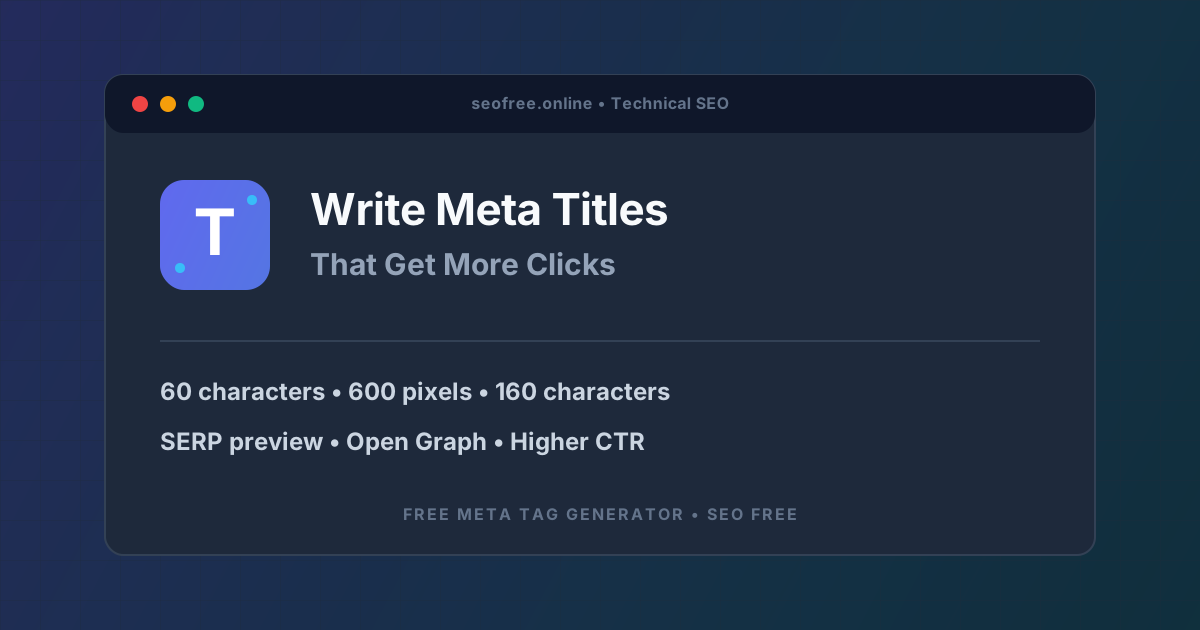
Two limits decide whether your snippet is shown in full or cut off. The first is characters. As a rule of thumb, keep titles under 60 characters and descriptions under 160 characters. That is the rule the Meta Tag Generator uses in its counters, and it is the limit most guides quote because it works for most pages.
The second limit is the one people forget: pixels. Google measures the width of your title in pixels, not characters, and a title full of wide capital letters takes up more room than the same number of narrow lowercase letters. On the SEO Free tool, titles wider than about 600 pixels and descriptions wider than about 960 pixels trigger a truncation warning in the live preview. A 60-character title made of wide words can still be cut off, while a 65-character title of narrow words may fit. The character count is a guide; the pixel width is the truth.
Mobile makes the space even tighter. Phone screens show fewer characters before cutting a title off, and a title that survives on desktop may lose its most important words on a phone. Because most searches now happen on phones, always check the mobile preview last and make sure the key phrase survives there. The practical rule is simple: put the most important words first, in both the title and the description, so that even a truncated snippet still says what matters.
How to write a meta title and description with the free tool
The fastest way to get this right is to write inside a tool that shows you the result as Google would. The free Meta Tag Generator and SERP Preview on SEO Free generates the HTML tags, the Open Graph tags and the Twitter Card tags, and shows a live Google search result preview for desktop and mobile, with character counters and pixel-width warnings. Follow these steps for each page.
- Enter your page title and meta description. Type the title into the Meta Title field and the description into the Meta Description field. Watch the counters: the title counter runs to 60 characters and the description counter to 160. Aim to stay inside both.
- Enter your target canonical URL and primary keyword. Add the page's canonical URL so the generated tags point to the right address, and enter the one phrase the page should rank for. The tool highlights the keyword in the preview, which shows you at a glance whether it appears early enough.
- View the real-time Google desktop and mobile SERP previews. Check both previews and watch the pixel widths. If the title passes 600 pixels or the description passes 960 pixels, the tool warns you that Google will truncate them. Move the important words to the front or trim the end until the warning clears.
- Configure Open Graph and Twitter Card tags. Add an Open Graph image URL and fill in the social fields. These tags control how the page looks when someone shares it on Facebook, LinkedIn, X or Slack. Without them, social networks guess, and the guess is usually a cropped image and a random piece of text.
- Set the robots directive. For a normal public page, keep the standard index, follow setting so search engines index the page and follow its links. Only choose noindex, follow if the page should stay out of search results while its links are still followed, or noindex, nofollow for a page that should be completely excluded.
- Copy the generated HTML tags and paste them into your page head section. Use the Copy Tags button, then paste the block into the head of the page. If your site runs on a CMS or a template, paste them into the template or the SEO field for that page, and make sure no older duplicate title or description tag is left behind.
- Switch between the desktop and mobile previews one last time. Trim anything that truncates on mobile, then record the final title and description pattern you settled on. Keeping a note of the pattern helps every future page on the site follow the same structure, which is how you avoid accidental duplicates.
Title and description formulas that work
You do not need to invent a new structure for every page. A small set of formulas covers almost every case, and a formula keeps your titles consistent across the whole site.
For guides and how-to pages, use How to [Topic] ([Year or Promise]) | [Brand]. The phrase matches the way people search, the bracket adds a reason to click, and the brand at the end builds recognition without eating the front of the title. For example, a title like "How to Write Meta Titles That Get Clicks (2026) | SEO Free" tells the searcher exactly what they will learn and when the advice is from.
For product and service pages, lead with the product and a concrete differentiator: [Product] - [Key Benefit] | [Brand]. Price, speed, a guarantee or a free version all work as differentiators because they answer the question the buyer is asking before they click. For blog posts and list articles, a number and a promise work well: [Number] [Topic] That [Result], such as "7 Meta Tag Mistakes That Cost You Clicks".
The matching formula for descriptions is benefit plus proof plus call to action. First say what the reader gains. Then back it with a specific detail, such as a number, a tool name or a time frame. Then finish with an invitation to click, such as "Learn how" or "Try the free tool". A description built this way reads like a reason, not a summary, and it gives the searcher something to do.
Two rules apply to every formula. First, use the primary keyword once, near the front of the title, and once in the description, written naturally. Repeating it three or four times looks like spam and can trigger a rewrite. Second, never write a title or description that the page does not deliver on. A click won with a promise the page breaks is a visitor who leaves in seconds, and that bounce tells Google the result was a poor match.
Tips for different page types
The homepage deserves a title that states what the site does and who it is for, in plain words, with the brand name included. It is usually the most linked page on a site, and it often ranks for the brand itself, so clarity matters more than cleverness. The description should name the main tools or services and the benefit of using them.
Guide and tutorial pages should lead with the question or the outcome the reader wants, exactly as they would type it into Google. If the guide solves a problem, name the problem. If it teaches a skill, name the skill and the result, such as a working file or a fixed error. Guides are also the pages where a year in the title helps most, because readers want current instructions.
Tool pages should lead with the tool's name and what it does, and mention that it is free if it is. People searching for a tool compare several options at a glance, so the title needs to carry the tool's job in the first few words, and the description should name the one or two features that set it apart. Check the page against the Keyword Density Checker afterwards if you want to confirm the page itself uses the target phrase naturally, without stuffing.
Blog posts and news pages can be more specific and more human than tool pages. A post title can carry an opinion or a number, and the description can quote the most useful finding from the article. The one rule that does not change is uniqueness: even two posts on a similar topic need different titles, or Google will treat them as competing versions of the same page.
Common problems and how to fix them
Titles or descriptions are too long. This is the most common problem and the easiest to fix. Open the page in the Meta Tag Generator, watch the pixel-width warning, and cut from the end first. Remove filler words, drop the brand name from the middle, and move the keyword to the front. If the description is still too long, cut the last sentence and let the call to action do the work.
The same title appears on many pages. This usually happens when a template writes the site name and a generic phrase on every page. Fix it by defining one title pattern per page type and filling in the page-specific words for each page. A quick way to find duplicates is to search your own site in Google with the site operator and look for repeated titles, or to check the title column in a crawl.
Google shows a different title or description. First check that your tags are actually present and that there is only one title and one description per page. Then check whether your title is keyword-stuffed, empty or duplicated, and whether your description matches the query people actually search for. If Google still rewrites it, look at what it chose instead: it is usually a heading or a passage from your content, and rewriting that heading to match the title you wanted often fixes the problem. Our guide to fixing canonical URL errors covers a related case where Google picks a different page entirely.
Descriptions are copied from the first paragraph. Many CMS setups fall back to the opening text when no description is written. The opening of an article is written to introduce, not to sell the click, so it makes a weak snippet. Write a dedicated description for every important page, using the benefit-plus-proof-plus-call-to-action formula.
Social shares look broken. If a shared link shows no image or the wrong text, the page is missing Open Graph or Twitter Card tags, or the image URL is wrong. Generate the social tags in the Meta Tag Generator, add a real image URL of at least 1200 by 630 pixels, and test the link with the social network's own debugger before sharing it widely.
Click-through rate stays low even on page one. Compare your snippet with the results above and below it. If every competitor promises a number, a free tool or a year, and yours promises nothing, the fix is in the copy, not the ranking. Add a specific benefit, a number or a differentiator, and check the result again after a few weeks. Small changes to a title can move the click-through rate by a visible amount without touching the ranking at all.
Frequently asked questions
How long should a meta title be?
Keep titles under 60 characters and under about 600 pixels wide. Google measures width in pixels, so a title of wide capital letters can be cut off even below 60 characters. Check the live preview in the Meta Tag Generator and move the important words to the front so they survive even if the end is truncated.
How long should a meta description be?
Keep descriptions under 160 characters and under about 960 pixels wide. Mobile screens show less, so test the mobile preview as well. A description of 150 to 160 characters that states a benefit, adds one specific detail and ends with a call to action usually performs better than a longer one that gets cut off mid-sentence.
Does the meta description affect Google rankings?
No, the meta description is not a direct ranking factor. It affects the click-through rate, which is the share of people who see your result and click it. A better description brings more visitors from the same ranking, and that extra traffic is often worth more than a small move up the results page.
Why does Google show a different title than the one I wrote?
Google rewrites titles that are missing, duplicated across many pages, stuffed with keywords, or a poor match for the search query. It usually replaces them with a heading or a passage from the page. To reduce rewrites, write a unique, accurate title under 60 characters that contains the page's main phrase near the front.
Do I need Open Graph and Twitter Card tags too?
Yes, if the page will ever be shared. These tags control the title, description and image that Facebook, LinkedIn, X and Slack show when someone pastes the link. Without them the networks guess, and the guess is often a cropped image and random text. The Meta Tag Generator creates both sets of tags alongside the standard SEO tags.
The bottom line
Meta titles and descriptions are small, but they sit at the exact point where a search becomes a visit. Write a unique title under 60 characters and 600 pixels, with the keyword near the front. Write a description under 160 characters that states a benefit, adds one specific detail and ends with a call to action. Check both in the desktop and mobile preview, add the Open Graph and Twitter Card tags, and paste the finished block into the page head. Do that for every important page, using one pattern per page type, and your snippets will stop blending in with the results around them and start earning the clicks they deserve.